CHECK
Checklists and auditing tools to help improve individual book files.
Our Auditing Tool - OARC
OARC
The Open Accessibility Review Checker
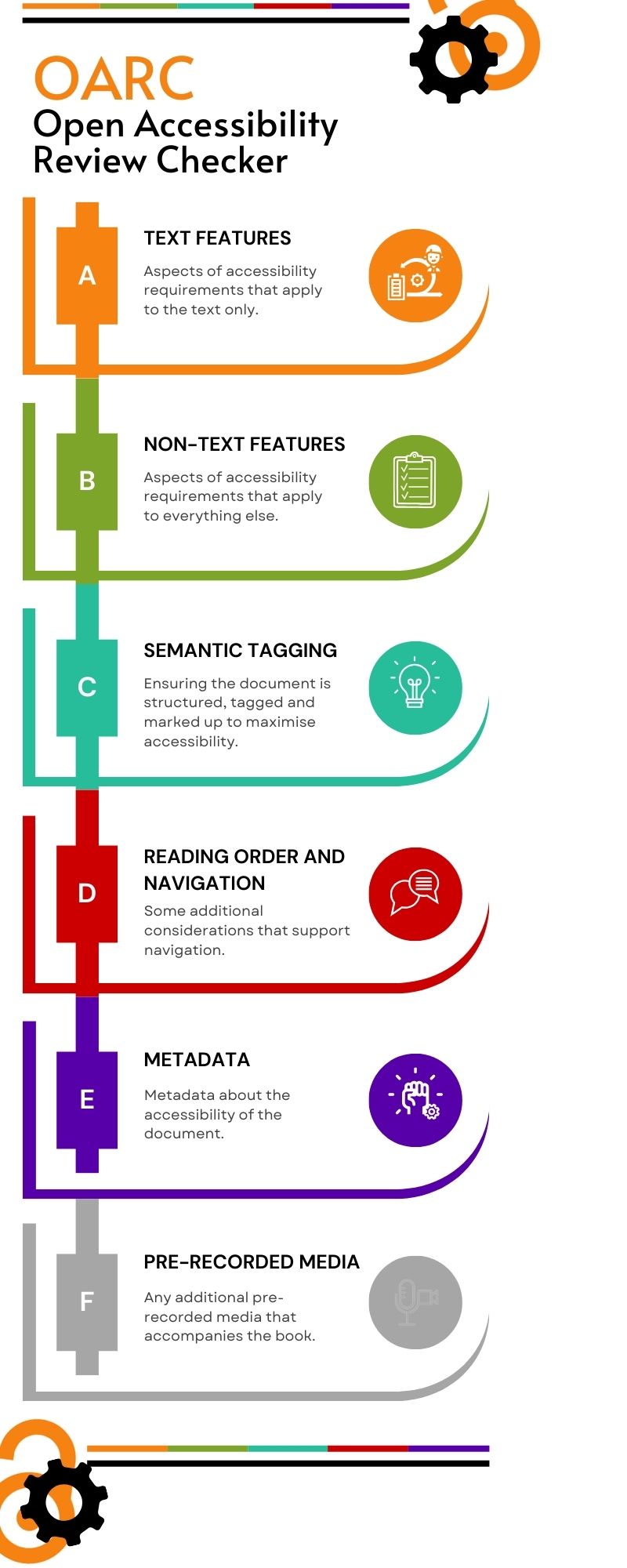
Our custom auditing tool has been developed by Open Book Futures to help small presses audit their static eBook files for accessibility. There are 40 points on the checklist, split into 5 sections: Text Features, Non-Text Features, Semantic Tagging, Reading Order and Navigation, and Metadata. There is an optional 6th section for if your book involves Pre-recorded Media, and for that there are 2 points. To determine these checklist points, we took out just the elements of WCAG that apply to static eBook files, removing those that apply to dynamic and interactive web pages, and adding in some additional EPUB or PDF specific points. Therefore the checklist is not suitable for auditing websites.
You can also access OARC formatted as a spreadsheet: OARC [Google Sheets]
On the spreadsheet you can find some additional context including whether each feature can be audited by a machine or needs to be done manually, and our approximation of how complicated each task is. Therefore, below, we present the checklist 3 times, in section order, and then split by human or machine audit and then by complexity.
View this information as a video.
OARC
A Text Features
- Text is actual text; not images of text.
- Colours of text has contrast ratio of at least 4.5:1
- Headings are descriptive of the content they contain
- Text is reflowable without causing horizontal scrolling or other problems
- Text can be resized without causing horizontal scrolling or other problems
- Line height and spacing, letter spacing and word spacing can all be changed without problems
- Orientation can be changed without problems
- Fonts are coded correctly
B Non-Text Features
- Non-text features (figures, graphics, captions, links, mathematical expressions) have meaningful ALT text
- Colours of non-text features (figures, graphics) has contrast ratio of at least 3:1
- Non-text features (figures, graphics, captions, links, mathematical expressions) have multiple ways of conveying meaning
- Links are accessible and meaningful
- Other clickable elements are 24 x 24 pixels
- Other clickable elements have visible text that matches the text in the underlying code
- A list's numbers, letters or bullets are displayed and tagged correctly
- A tables's headers, rows and columns are tagged correctly
C Semantic Tagging
- Non-decorative/real and decorative/artefact content is all tagged correctly
- Non-text features (figures, graphics, captions, links, mathematical expressions) are tagged and grouped correctly
- Lists, tables and TOCs are tagged correctly
- Headers, footers, notes and references are tagged correctly
- Headings are tagged as headings
- Headings have just 1 <H1>, at the beginning
- Headings <H2>-<H6> don't skip levels
- No headings <H7> or higher
- Other non-PDF structure elements tagged correctly (EPUBs)
- PDF tags support the separate reading order (PDFs)
- PDF role mapping is correct (PDFs)
- Other structure elements in PDF tagged correctly (PDFs)
D Reading Order and Navigation
- Multiple ways to navigate
- Static page breaks are present (EPUBs)
- Static page breaks are navigable (EPUBs)
- Navigation consistent throughout
- Reading/focus order retains meaning when using tabs or a screenreader
- Repeating blocks of content can be skipped
E Metadata and Conformance reporting
- File has metadata
- File metadata has a title that is used instead of file name
- File metadata has a valid language
- Where the language changes, individual parts have a valid language
- Source of static page breaks/pagination is identifiable (EPUBs)
- File metadata includes full accessibility conformance information
F Pre-recorded Media (optional)
- All audio only content has an alternative suitable for individuals with a hearing impairment
- All video only content has an alternative suitable for individuals with a visual impairment
OARC by auditing type
Machine/Automated Auditing
A2. Colours of text has contrast ratio of at least 4.5:1
A8. Fonts are coded correctly
B2. Colours of non-text features (figures, graphics) has contrast ratio of at least 3:1
B5. Other clickable elements are 24 x 24 pixels
B6. Other clickable elements have visible text that matches the text in the underlying code
C6. Headings have just 1 <H1>, at the beginning
C7. Headings <H2>-<H6> don't skip levels
C8. No headings <H7> or higher
C10. PDF tags support the separate reading order
C11. PDF role mapping is correct
C12. Other structure elements in PDF tagged correctly
D1. Multiple ways to navigate
D2. Static page breaks are present
D3. Static page breaks are navigable
E1. File has metadata
E2. File metadata has a title that is used instead of file name
E3. File metadata has a valid language
E4. Where the language changes, individual parts have a valid language
E6. File metadata includes full accessibility conformance information
Human/Manual Auditing
A1. Text is actual text; not images of text
A3. Headings are descriptive of the content they contain
A4. Text is reflowable without causing horizontal scrolling or other problems
A5. Text can be resized without causing horizontal scrolling or other problems
A6. Line height and spacing, letter spacing and word spacing can all be changed without problems
A7. Orientation can be changed without problems
B1. Non-text features (figures, graphics, captions, links, mathematical expressions) have meaningful ALT text
B3. Non-text features (figures, graphics, captions, links, mathematical expressions) have multiple ways of conveying meaning
B4. Links are accessible and meaningful
B7. A list's numbers, letters or bullets are displayed and tagged correctly
B8. A tables's headers, rows and columns are tagged correctly
C1. Non-decorative/real and decorative/artefact content is all tagged correctly
C2. Non-text features (figures, graphics, captions, links, mathematical expressions) are tagged and grouped correctly
C3. Lists, tables and TOCs are tagged correctly
C4. Headers, footers, notes and references are tagged correctly
C5. Headings are tagged as headings
C9. Other non-PDF structure elements tagged correctly
E5. Source of static page breaks/pagination is identifiable
F1. All audio only content has an alternative suitable for individuals with a hearing impairment
F2. All video only content has an alternative suitable for individuals with a visual impairment
OARC by complexity
Easy wins
A1. Text is actual text; not images of text
A2. Colours of text has contrast ratio of at least 4.5:1
A4. Text is reflowable without problems
A5. Text can be resized without problems
A6. Line height and spacing, letter spacing and word spacing can all be changed without problems
A7. Orientation can be changed without problems
B5. Other clickable elements are 24 x 24 pixels
B6. Other clickable elements have visible text that matches the text in the underlying code
B7. A list's numbers, letters or bullets are displayed and tagged correctly
C1. Non-decorative/real and decorative/artefact content is all tagged correctly
C2. Non-text features (figures, graphics, captions, links, mathematical expressions) are tagged and grouped correctly
C3. Lists, tables and TOCs are tagged correctly
C4. Headers, footers, notes and references are tagged correctly
C5. Headings are tagged as headings
C6. Headings have just 1 <H1>, at the beginning
C7. Headings <H2>-<H6> don't skip levels
C8. No headings <H7> or higher
C9. Other non-PDF structure elements tagged correctly
D1. Multiple ways to navigate
D4. Navigation consistent throughout
D6. Repeating blocks of content can be skipped
Medium
A3. Headings are descriptive of the content they contain
A8. Fonts are coded correctly
B2. Colours of non-text features (figures, graphics) has contrast ratio of at least 3:1
B4. Links are accessible and meaningful
B8. A tables's headers, rows and columns are tagged correctly
D2. Static page breaks are present
D3. Static page breaks are navigable
D5. Reading/focus order retains meaning when using tabs or a screenreader
E1. File has metadata
E2. File metadata has a title that is used instead of file name
E3. File metadata has a valid language
E5. Source of static page breaks/pagination is identifiable
E6. File metadata includes full accessibility conformance information
Complicated
B1. Non-text features (figures, graphics, captions, links, mathematical expressions) have meaningful ALT text
B3. Non-text features (figures, graphics, captions, links, mathematical expressions) have multiple ways of conveying meaning
B10. PDF tags support the separate reading order
B11. PDF role mapping is correct
B12. Other structure elements in PDF tagged correctly
Variable
E4. Where the language changes, individual parts have a valid language
F1. All audio only content has an alternative suitable for individuals with a hearing impairment
F2. All video only content has an alternative suitable for individuals with a visual impairment
Auditing Advice
This page explains how to audit the current accessibility of all aspects of the organisation, including the frontlist and backlist book files, the website functionality and the backend submission platform. You could complete this yourself using self auditing, or employ an external auditor. You could also look at assessing current organisational knowledge, attitudes towards and motivations for engaging with accessibility work. For a full audit, especially if you have ambitions to go beyond legal compliance, you could consider all of the four steps below, but completing the first two would be sufficient as a minimum.
- Automated Testing
- Manual Checking
- Assistive Technology Tests
- End user testing from print disabled people
Automated Testing
There are many proprietary and open source tools available to audit accessibility using automated testing. Below we have collated our top picks for open source tools, however many publishers may have budget to purchase a tool to do this, therefore, we have included links to other curated lists of accessibility tools from recommended sources. It's important to note that automated testing is only part of the process and can only take you so far, as many accessibility features require human assessment, for example, automated tools can check for the presence of ALT text, but can only guess at it's quality, for example length or matching the file name, and full quality checking will always need a human.
Top Picks:
EPUBs
PDFs
PAC (PDF Accessibility Checker)
HTML and Web Pages
More tools:
W3 Web Accessibility Evaluation Tools List
DWP Accessibility Tools and Resources
Manual checking
EPUBs and PDFs
We recommend our auditing tool, OARC, which includes just the parts of WCAG that are relevant to static files, and has additional checklist items for the two most common file type formats for open eBooks.
HTML and Web Pages
For HTML books and web pages, you would need to consider all of WCAG AA, rather than just the selected checklist above, which only includes aspects of standards that apply to ebook files that need to be manually checked. Below are a list of already available widely used full WCAG based checklists:
Checklist of Checkpoints for Web Content Accessibility Guidelines 1.0
Deque Accessibility Developer's Guide
Other checklists and related tools:
UK Government: Basic accessibility check
Web Content Accessibility Guidelines - Quick Reference
Web Content Accessibility Guidelines in Plain English
BCCampus - Accessibility Toolkit - 2nd Edition
Open University Library - WCAG 2.2 Level A and AA Basic Primo VE Checklist
Assistive Technology Tests
We recommend running at least a sample of eBooks through assistive technology in order to double check that everything works OK, and best if this is a range of the most commonly used tools that fulfill a range of functions. The minimum checks you complete should be checking that:
- the file opens
- the file displays properly in a way that's understandable
- everything within the file can be used with that technology
There are different types of assistive technology that are commonly in use and you should check through at least one example of each type.
Contrast, Colour and Font Changers
Try different settings using:
- Windows High Contrast mode
- Different browser's settings, such as Firefox and Chrome
Screen Readers
NVDA desktop screen reader is a commonly used open source application that you can download and test with. It's also recommended to check using mobile screen readers such as VoiceOver on iOS or TalkBack on Android. Complete the following tests using these technologies:
- Read every element and header
- Tab through every link
- Check every landmark, for example your footer and any navigation
- Check your use of Accessible Rich Internet Applications (ARIA)
- Check you can fill in any editable fields, for example writing and submitting a form
Screen Magnifiers
Use desktop features such as Windows Magnifier or mobile features such as Apple Zoom to check this. Complete the following checks using these features:
- Test up to at least 4 times magnification
- The spacing between elements, for example the gap between a form label and field
- That page elements display consistently on different page layouts - so someone who is zoomed in to a page can always find the search box, for example
- That users know when something happens outside the viewport - for example, with modals or error messages
Speech Recognition
Dragon speech recognition is a commonly used proprietary desktop screen reader that you can test with. It's also recommended to check using mobile speech recognition on iOS or Android. Complete the following tests using these technologies:
Make sure you speak clearly, but naturally. You should also use a high quality headset rather than an in-built microphone in your local machine and make sure you’re at a consistent distance from the microphone.
More information:
WebAim articles
using NVDA to evaluate web accessibility
using VoiceOver to evaluate web accessibility
UK Government advice
GOV.uk Testing with assistive technologies
End user testing from print disabled people
While not common for small presses, and likely this is beyond available capacity, best practice would be to approach end users with disabilities to test a sample of book files, web pages and submission systems. Below is some advice on finding user testing opportunities like this, if presses decide to go down this route.
The best feedback will always come from end users with disabilities, and from older users, as it can uncover accessibility barriers that are commonly experienced by your readership, yet are not captured within legal minimum accessibility requirements.
In most cases, including users in evaluation involves:
- getting a few people with disabilities, and depending on your target audience, older users
- including them throughout the development process to complete sample tasks on draft book files and websites so you can see how different aspects of the design and coding could be improved before publication
- discussing accessibility issues with them
Sources:
W3C Involving Users in Evaluating Web Accessibility
W3C Involving Users in Web Projects for Better, Easier Accessibility
More information:
AbilityNet - A Step-by-Step Guide to User Testing
AbilityNet - Product and Services - User Accessibility Testing and Research
The GOV.uk website includes a set of hypothetical user profiles to give you working examples of the range of users and their needs. These can be used to develop a strong idea of accessibility use cases and may help make content design decisions.
Understanding disabilities and impairments: user profiles
Other Auditing Tools and Checklists
Checklist of Checkpoints for Web Content Accessibility Guidelines 1.0
Deque Accessibility Developer's Guide
UK Government: Basic accessibility check
Web Content Accessibility Guidelines - Quick Reference
Web Content Accessibility Guidelines in Plain English
BCCampus - Accessibility Toolkit - 2nd Edition
Open University Library - WCAG 2.2 Level A and AA Basic Primo VE Checklist